Beginner Steps. Advanced AI.
Published guideUpdated
Chapter 3 of 20Set up
Open the project on your computer
Install three tools, download your GitHub project, and open it in Codex.

Now we'll bring your project onto your computer.
Follow the pictures
Illustrated examples. Your app may look different. Tap an image to enlarge it.
-
Install the three tools
Install Git, Node LTS, and GitHub CLI for your computer. Reopen the terminal afterward.
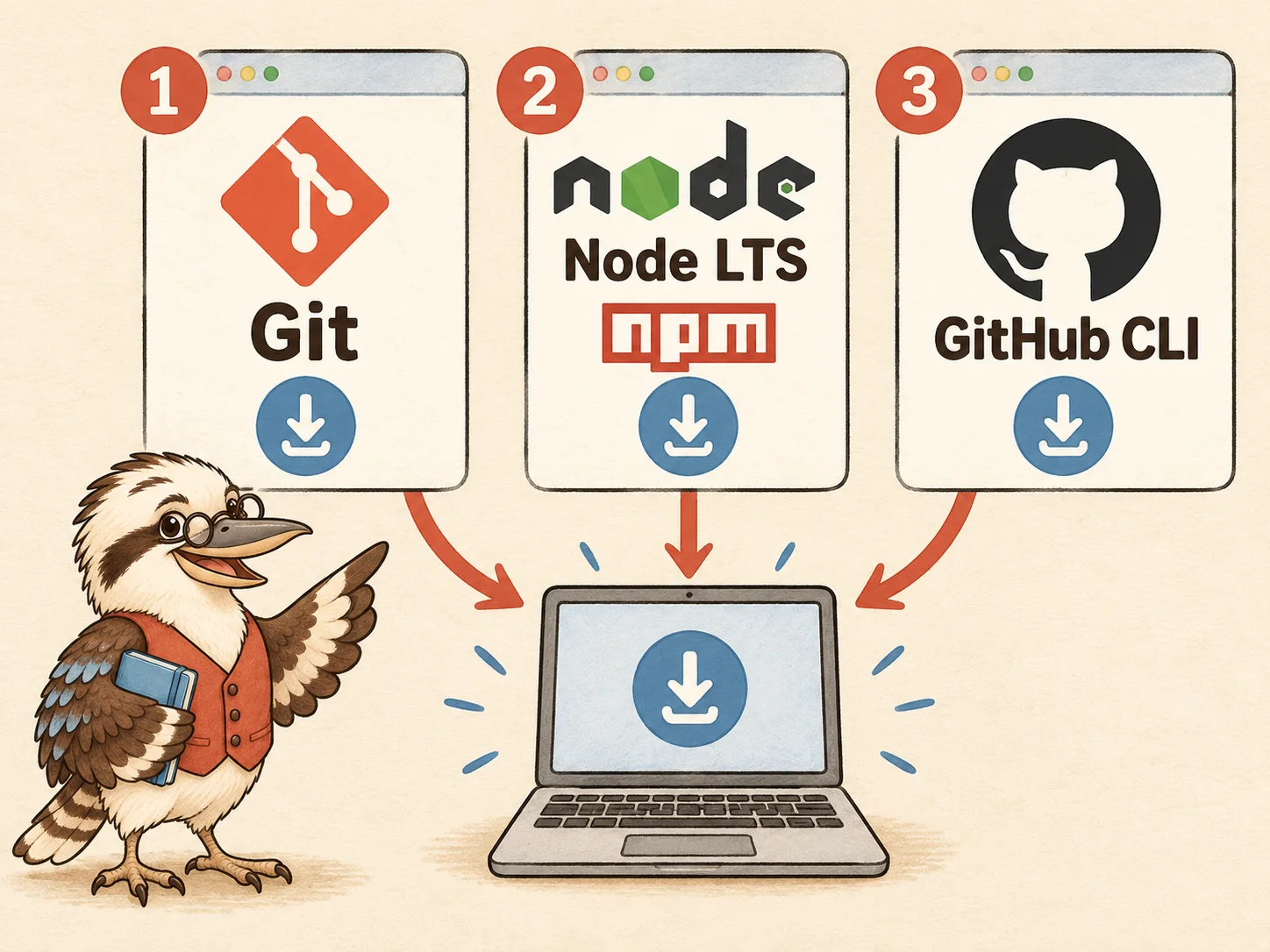
Illustrated example - Install
- Git → Node LTS → GitHub CLI
Look for: All three tools are installed on your computer.
More help with this action
Git records versions; GitHub stores them online. Node runs development tools, and npm installs their packages. Use current Node LTS supported by Astro: this draft requires at least 22.12 and excludes odd-numbered releases. This walkthrough uses GitHub CLI, gh, for browser login and cloning. Codex CLI is optional when using the desktop app. Run commands separately; resolve errors before continuing.
Show the steps
- Install Git, Node LTS, and GitHub CLI using the official instructions for your operating system. Reopen the terminal afterward.
- Use the official installation instructions for your operating system. npm comes with Node.
- Astro requires Node 22.12 or higher and does not support odd-numbered Node versions.
- GitHub CLI's command name is gh. It is different from Codex CLI, which is optional when using the desktop app.
You should now see: All three tools are installed on your computer.
-
Check the tools
Open Terminal on Mac or PowerShell on Windows. Run the version checks one line at a time.
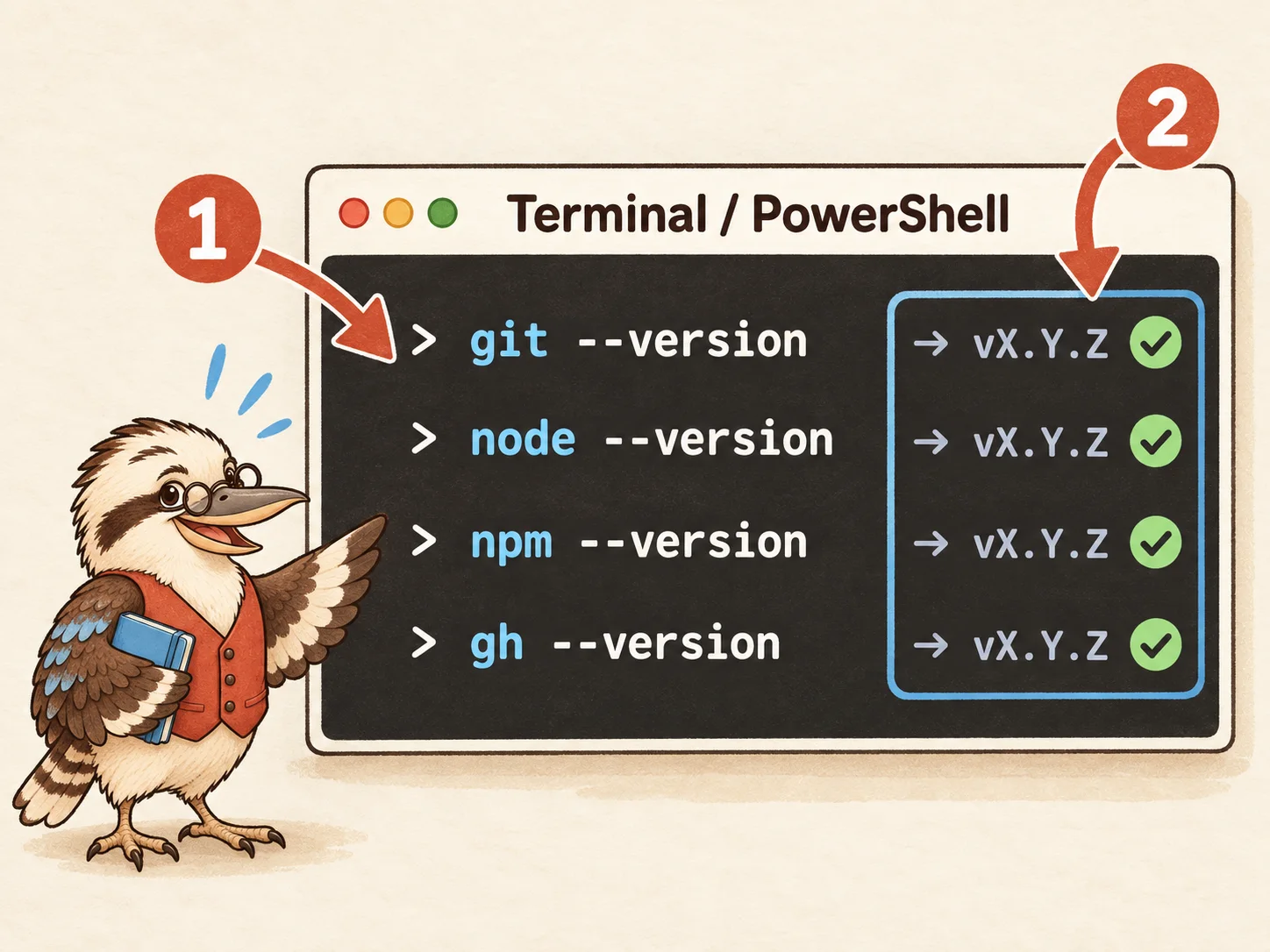
Illustrated example - Mac
- Terminal → Version checks
- Windows
- PowerShell → Version checks
Look for: Git, Node, npm and gh return version numbers; Node meets Astro’s requirement.
More help with this action
Follow these steps if you want more help.
Show the steps
- Open Terminal on macOS/Linux or PowerShell on Windows. Run the installed-tool version checks one command at a time; each should return a version number.
- On Mac, find Terminal with Spotlight. On Windows, open Start and search for PowerShell.
- Copy one line from Check installed tools, paste it into the terminal, press Enter, and inspect the result.
- If a command is missing, reopen the terminal and inspect that tool's installation before continuing.
You should now see: Git, Node, npm and gh return version numbers; Node meets Astro’s requirement.
-
Connect the terminal to GitHub
Run gh auth login. Choose GitHub.com → HTTPS → Browser, finish signing in, then run gh auth status.
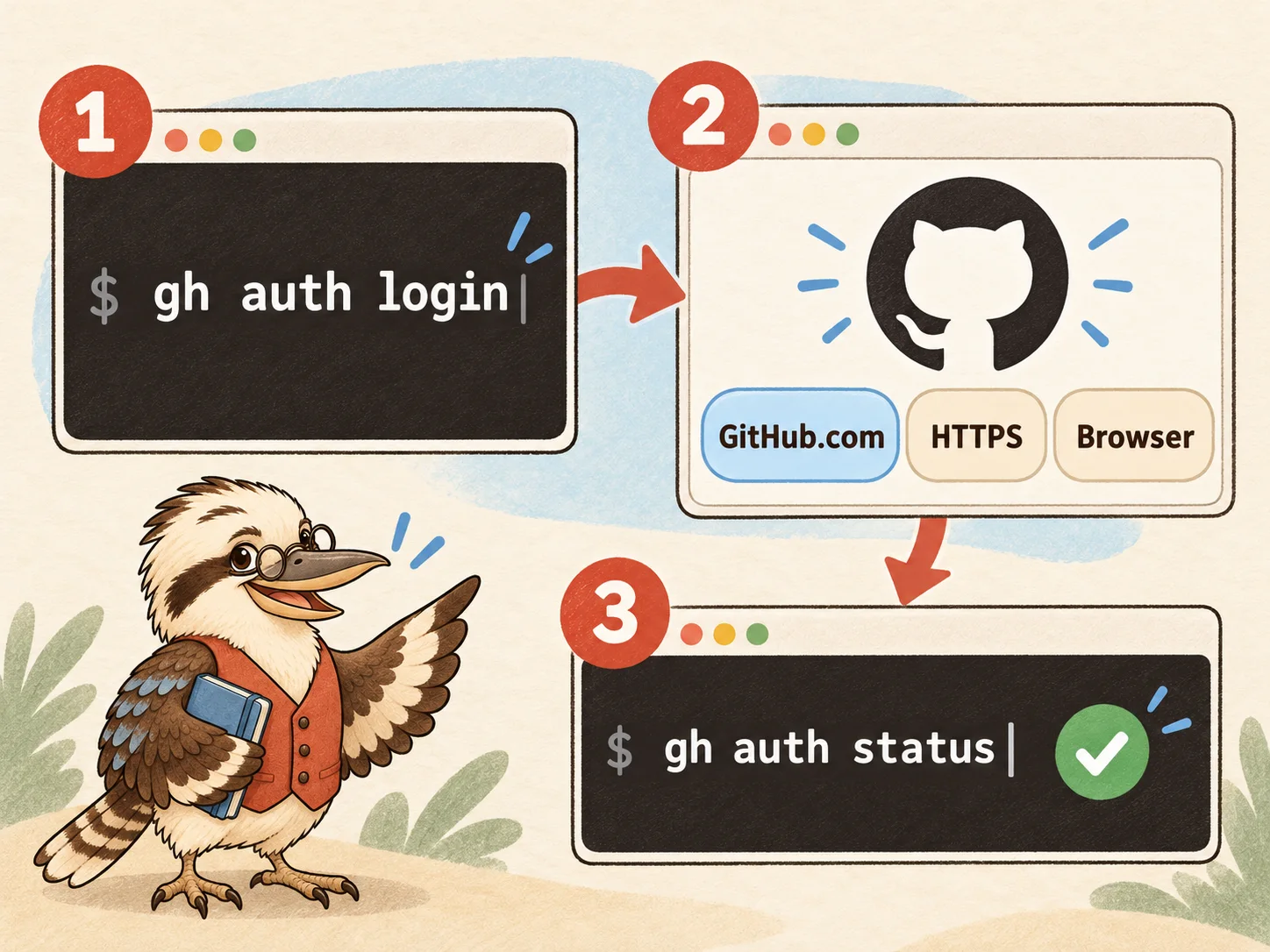
Illustrated example - Choose
- GitHub.com → HTTPS → Browser sign-in
- Then
- gh auth status
Look for: gh auth status identifies your intended GitHub account without showing a token.
More help with this action
Follow these steps if you want more help.
Show the steps
- Run gh auth login. Choose GitHub.com, HTTPS, browser authentication, and Yes if asked to authenticate Git. Complete the browser flow, then run gh auth status.
- This signs GitHub CLI into GitHub; it does not change your Codex or OpenAI account.
- If prompted to authenticate Git, choose Yes. Finish the browser flow in your own account.
- Never share any temporary device code or token. Check the account shown by gh auth status.
You should now see: gh auth status identifies your intended GitHub account without showing a token.
-
Download your project
Open Documents: Mac / Windows. Run the clone commands, replacing YOUR_USERNAME with your GitHub username.
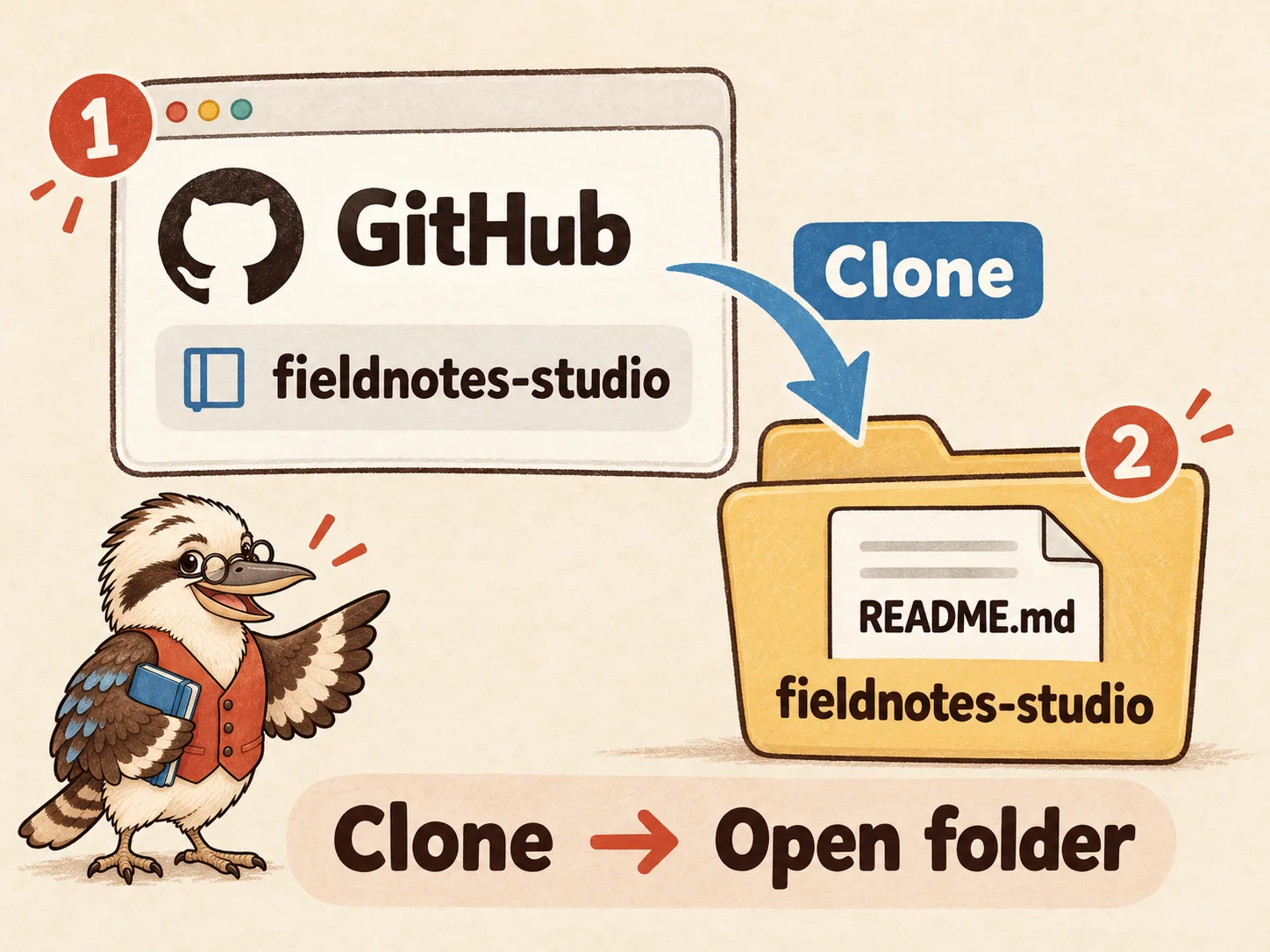
Illustrated example - Start in
- Terminal or PowerShell → Documents
- Run
- gh repo clone YOUR_USERNAME/fieldnotes-studio
- Then
- cd fieldnotes-studio
Look for: Your computer has fieldnotes-studio with README.md and the project’s Git history.
More help with this action
Download your GitHub repository into Documents using the clone commands; GitHub CLI explains cloning.
Start in Documents
- On Mac, open Terminal and copy Open Documents on a Mac. Paste it and press Return.
- On Windows, open PowerShell and copy Open Documents on Windows. Paste it and press Enter. This asks Windows for your Documents folder, including a redirected location.
- Then copy the clone commands. Replace YOUR_USERNAME with your GitHub username, and run each line in order.
- If fieldnotes-studio already exists there, stop and ask Codex to inspect it. Do not delete or overwrite an existing project.
You should now see: Your computer has fieldnotes-studio with README.md and the project’s Git history.
-
Create your build branch
Inside fieldnotes-studio, run the author and branch commands. Replace the example name and email; check git status shows codex/first-site.
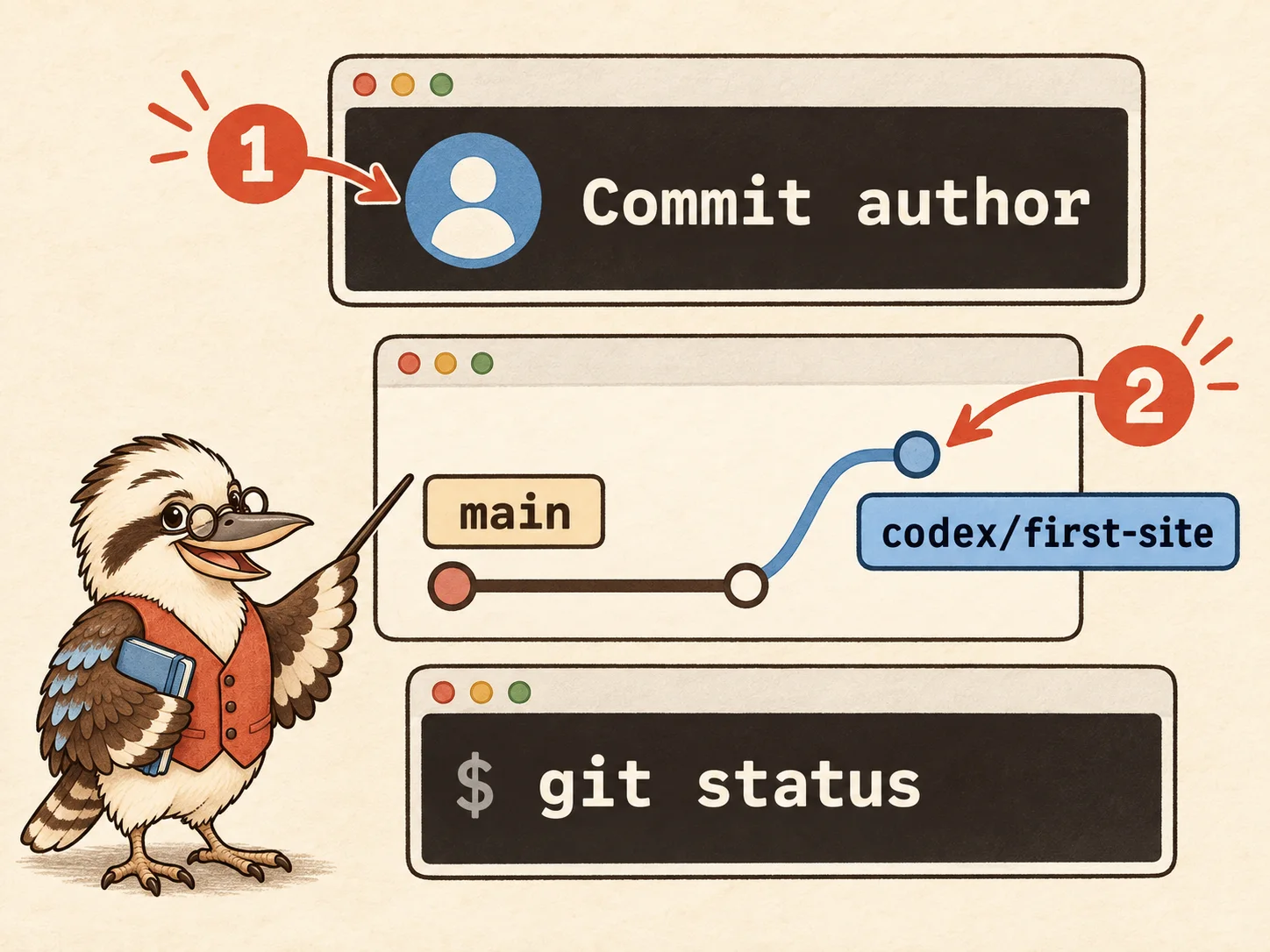
Illustrated example - Set
- Your commit name and email
- Run
- git switch -c codex/first-site → git status
Look for: Git knows your commit author and reports the codex/first-site branch.
More help with this action
Follow these steps if you want more help.
Show the steps
- Inside fieldnotes-studio, use the project author commands. Replace the example values; for privacy, copy your GitHub noreply commit email from Settings > Emails.
- The two git config commands apply to this project. Replace their example name and email before running them.
- Run git switch -c codex/first-site, then git status. If the branch already exists, ask Codex to inspect it before creating another.
- The next action connects Codex to this repository instead of the practice folder.
You should now see: Git knows your commit author and reports the codex/first-site branch.
-
Check the project in Codex
Open fieldnotes-studio in Codex. In its new chat, send the connection-check prompt before changing files.
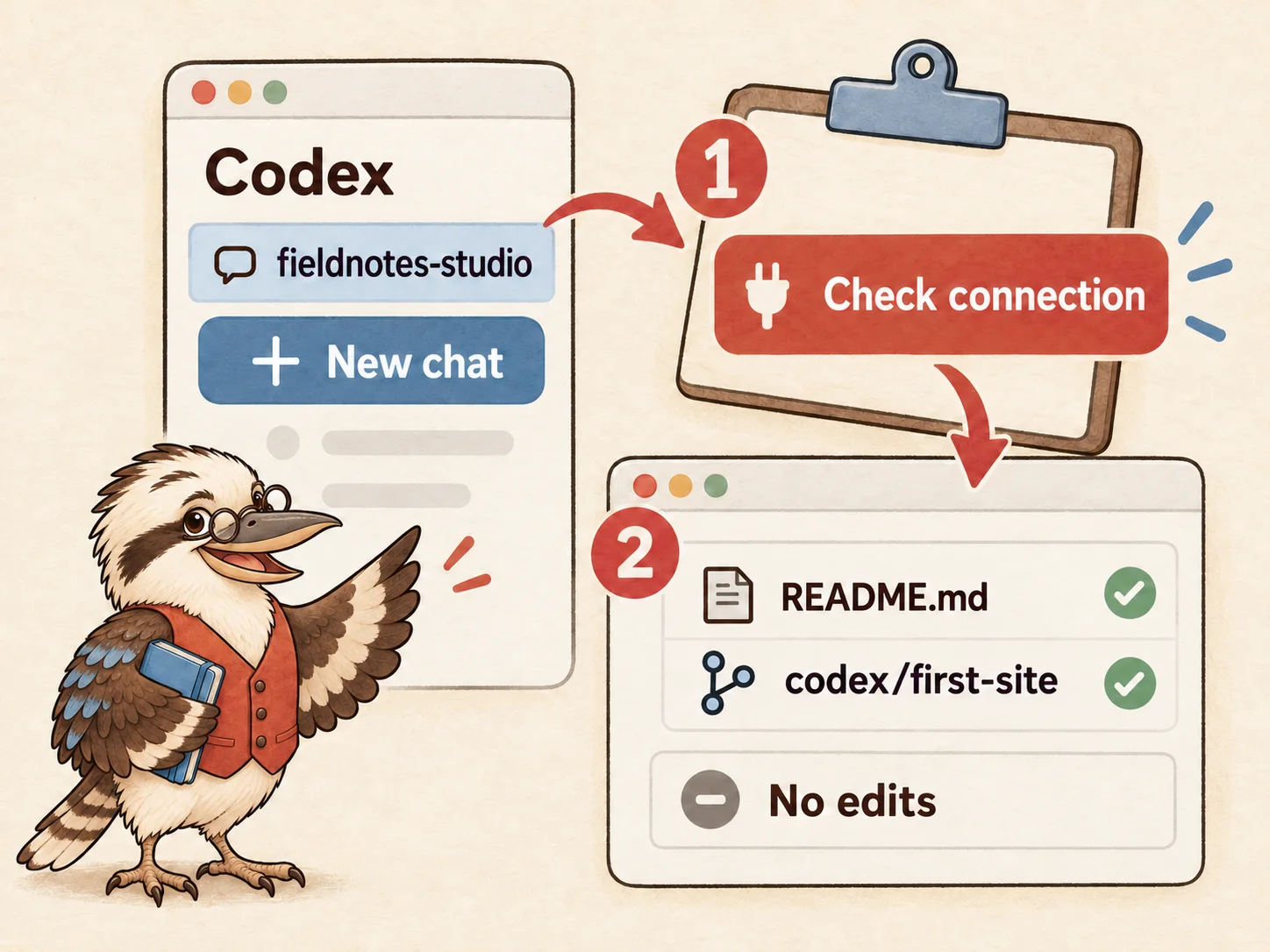
Illustrated example - Click path
- Codex → Local project → fieldnotes-studio → New chat
- Then
- Copy connection prompt → Send
Look for: Codex confirms the repository, remote, branch and tool versions without editing files.
More help with this action
Follow these steps if you want more help.
Show the steps
- Run the branch creation commands to create codex/first-site and check git status. Open fieldnotes-studio as the Codex local project, replacing website-workshop.
- Ask Codex to explain saving and recovering changes. Inspect edits with git diff; restoring a file discards uncommitted edits, so review them first.
- Choose the downloaded fieldnotes-studio folder itself, not Documents or website-workshop. Select Local if asked.
- Send Confirm the connection. Compare its response with README.md, the GitHub repository and codex/first-site.
- Restoring a file can discard uncommitted edits. Review what would be lost before using recovery commands.
You should now see: Codex confirms the repository, remote, branch and tool versions without editing files.
Why this step matters
Git saves versions. Node runs website-building tools, and npm installs their packages. GitHub CLI, called gh, helps this walkthrough connect to GitHub.
A branch keeps your build work separate. Run commands one at a time and read each result before continuing.
Basics, explained
Terminal
A window for typing computer commands. Enter runs a command; cd followed by a folder path moves into that folder. Read each result before continuing.
Clone
Download a working copy of a repository, including its recorded history.
Branch
A named line of changes that lets you develop work separately before combining it with the main version.
LTS
Long Term Support: a release line maintained for stability and fixes over a longer period.
Ask your agent
PromptConfirm the connection
Inspect without editing. Confirm the repository, GitHub remote, branch, and tool versions. Explain git diff, committing, pushing to GitHub, and safely recovering one file. Never discard changes without showing what would be lost.Files & commands
shellCheck installed tools
git --version
node --version
npm --version
gh --versionshOpen Documents on a Mac
cd "$HOME/Documents"powershellOpen Documents on Windows
Set-Location ([Environment]::GetFolderPath("MyDocuments"))shellClone your repository
gh repo clone YOUR_USERNAME/fieldnotes-studio
cd fieldnotes-studioshellSet project author and create a branch
git config user.name "Your Name"
git config user.email "YOUR_GITHUB_EMAIL"
git switch -c codex/first-site
git statusIf something goes wrong
- A command is not recognised.
- Reopen the terminal. Follow the tool's PATH instructions: PATH lists locations your computer searches for commands.
- Cloning fails.
- Check username and repository spelling. Confirm gh auth status matches an account that can open the private repository.
Official links & further reading
Personal notes
Add questions, decisions or ideas for your website. Saved in this browser when available; export your notes to keep a copy. Never enter secrets.
Downloads & saved progressGuide, notes and personal checks
Download the complete guide or export your notes from every chapter. Instructions last reviewed: .
Checks and notes stay in this browser, separately for each language. Export your notes to preserve them. Never enter API keys or other secrets here.
NotesNotes as Markdown
Clipboard access is unavailable. Copy the visible, selected text below using your keyboard or browser menu.
0 of 65 checks marked across the guide
These are your saved personal checkmarks. They do not run tests or verify security, and are separate from the chapter position bar above.
Starter filesWorking instructions and four skills
These templates give your agent a starting set of working instructions. Review them, adapt them to your website, and save each file at the exact path shown, relative to your project folder.
A downloaded skill is an instruction file. It does not install a test runner, run a security scan, or prove your site is safe. The guide shows how to set up and check that work.
Download the instruction files in the language of this guide. Keep the technical filenames and paths as shown.
Download all starter filesFileAGENTS.md
# Website working agreements

This project follows the website brief and acceptance criteria we have agreed with its owner. Use the existing technology choices unless a concrete requirement calls for a change.

## How to work

- For a substantial feature, explain the proposed changes and verification plan before implementing it. Complete authorized local work in small, reviewable stages.
- Read the files relevant to the task. Keep unrelated pages and configuration intact.
- Explain new technical terms in plain language when reporting to the owner.
- Use the repository's website-design, clean-code, website-testing and website-security skills when their workflows apply.
- Record important decisions and unresolved content in the project's notes. Do not invent business facts, endorsements or publishing rights.

## Verification

- Inspect package.json to find the actual build, type-check and test commands. Do not invent a successful check or create a meaningless test just to make a command pass.
- Run checks appropriate to the change. Local tests use disposable fixtures and have no production access; run them and repair failures caused by the requested change without asking at every step.
- Verify visitor interactions in a browser when browser tools are available. Report checks that remain unavailable or incomplete.
- Show the owner a working local preview and summarise changed behaviour, evidence and remaining limitations.

## Credentials and publication

- Keep API keys and other secrets out of browser code, prompts, logs and Git. Store local secrets in ignored files or the chosen secret store.
- Local build and test work is authorized. Publishing the site, sending a real message, processing a payment or changing production data requires the owner's authorization for that action.
- Preserve a recoverable working version before release. Describe how to restore it.

These are starter agreements for a new tutorial project. Adapt them to the owner's actual requirements and existing authorization.
File.agents/skills/website-design/SKILL.md
---
name: website-design
description: Develop or refine a website's visual direction and responsive interface from its brief, content and existing design. Use for page design or visual implementation.
---

Read the website brief and any existing design notes relevant to the requested page. Work within the user's brand, content and technology choices.

When establishing a new direction, propose typography, a small colour palette, a spacing rhythm and a sample page. Explain how these choices support the audience and main visitor action. Use real content to judge hierarchy and line lengths.

Implement reusable elements for navigation, headings, buttons and repeated content. Give primary actions a clear visual hierarchy. Preserve visible keyboard focus, readable contrast and usable labels. Design narrow screens alongside desktop screens; check long headings, navigation and tap targets in a browser.

Use semantic HTML before adding custom interaction. Keep motion optional and respect reduced-motion preferences. Use assets with known permission to publish; record their sources. Do not invent client testimonials, achievements or business facts.

Before expanding a design across all pages, show the first complete page at desktop and mobile widths. Describe the main design decisions and any unresolved content. When a browser tool is unavailable, report that visual verification is still pending.
File.agents/skills/clean-code/SKILL.md
---
name: clean-code
description: Implement or refactor website code into understandable components using the project's existing stack and conventions. Use for website implementation or maintainability work.
---

Read the relevant files and package scripts before choosing an implementation. Preserve working behaviour outside the requested change. Prefer the existing stack and dependencies when they meet the need.

Keep page content separate from repeated layout where that makes editing easier. Name components, variables and functions for their purpose. Use shared components for repeated navigation and page elements; avoid abstraction for a single trivial use.

Handle empty, invalid, loading and error states for interactions that need them. Use native browser controls and semantic HTML when they serve the interaction. Avoid fake form submission, simulated success messages and dead links.

Use type checking and the project's formatting or lint rules where configured. When adding a package, explain its purpose and any new maintenance or runtime requirements. Keep generated build output, dependencies and local environment files out of version control.

Run the existing checks relevant to the change, including a production build when output can change. Summarise changed behaviour, verification results and remaining limits. Explain the main files in plain language so a beginner can find and edit their content.
File.agents/skills/website-testing/SKILL.md
---
name: website-testing
description: Verify website changes through visitor journeys, appropriate automated tests and browser checks. Use when testing a website, investigating a failure or preparing a release.
---

Start from the brief and observable acceptance criteria. Inspect existing test and build commands; do not assume that a script exists. Choose checks based on the changed behaviour and the cost of failure.

Exercise the main visitor journey and affected links, navigation and forms. Include invalid input and relevant error states. For a contact form, verify actual delivery in the agreed test destination before reporting that it works. For an email link, explain that it opens the visitor's configured email app and does not send a message automatically.

Check narrow and wide screens in a browser. Include keyboard navigation, visible focus, accessible names, zoom and horizontal overflow. Automated accessibility results complement these manual checks and do not establish complete accessibility conformance.

Add automated tests for important behaviour or demonstrated regressions. Test observable outcomes and meaningful failure cases; avoid tests that merely repeat the implementation or match incidental wording. Use disposable test data and local fixtures. Never send real messages, charge payments or alter production data without the user's authorization.

Reproduce a failure, fix its cause and rerun affected checks. Report commands run, results, browser checks performed and anything not checked. A successful build shows that the site can be generated; verify visitor behaviour separately. Never report a check as passed when it was skipped or unavailable.
File.agents/skills/website-security/SKILL.md
---
name: website-security
description: Review a website's secrets, dependencies, inputs, permissions and deployment configuration, and repair scoped security findings. Use for requested security review or release preparation.
---

Identify the site's relevant surfaces: static pages, forms, backend routes, authentication, third-party scripts and stored data. Scope review to the actual architecture and authorized environment.

Keep credentials out of browser code, logs, prompts and Git. Distinguish build-time public configuration from server secrets. If a key was committed or exposed, stop using it, explain that deleting the file does not revoke the key, and have the owner revoke or rotate it before further use. Do not print the credential in your report.

Inspect applicable dependency advisories and assess whether the affected package and vulnerable behaviour are used. Repair within the project's compatible versions and rerun affected checks. Avoid automatic forced upgrades that may break the website.

For backend interactions, validate inputs on the server, encode output appropriately, and check authentication and authorization separately. Consider abuse controls for public forms or AI endpoints. An OpenAI API key belongs on the server; publishing a static site does not provide a secret server environment.

Check HTTPS and applicable security headers at the actual hosting layer. Collect only the data the feature needs, and explain its destination and retention. Do not claim legal compliance from a code scan.

Report each finding with its location, plausible impact, fix and verification. State review scope, tools used, unresolved findings and inaccessible surfaces. A clean scan is evidence about that scan's scope, not a guarantee that the website has no vulnerabilities. Do not scan third-party systems or deploy changes outside the authorized task.